Item Price
By Arunkumar Ganesan on December 21, 2022
BeginnerItem Price is the catalog record in which you can log the selling rate of an item.
To access the Item Price, go to:
Home > Offer > Masters > Item Price
Or
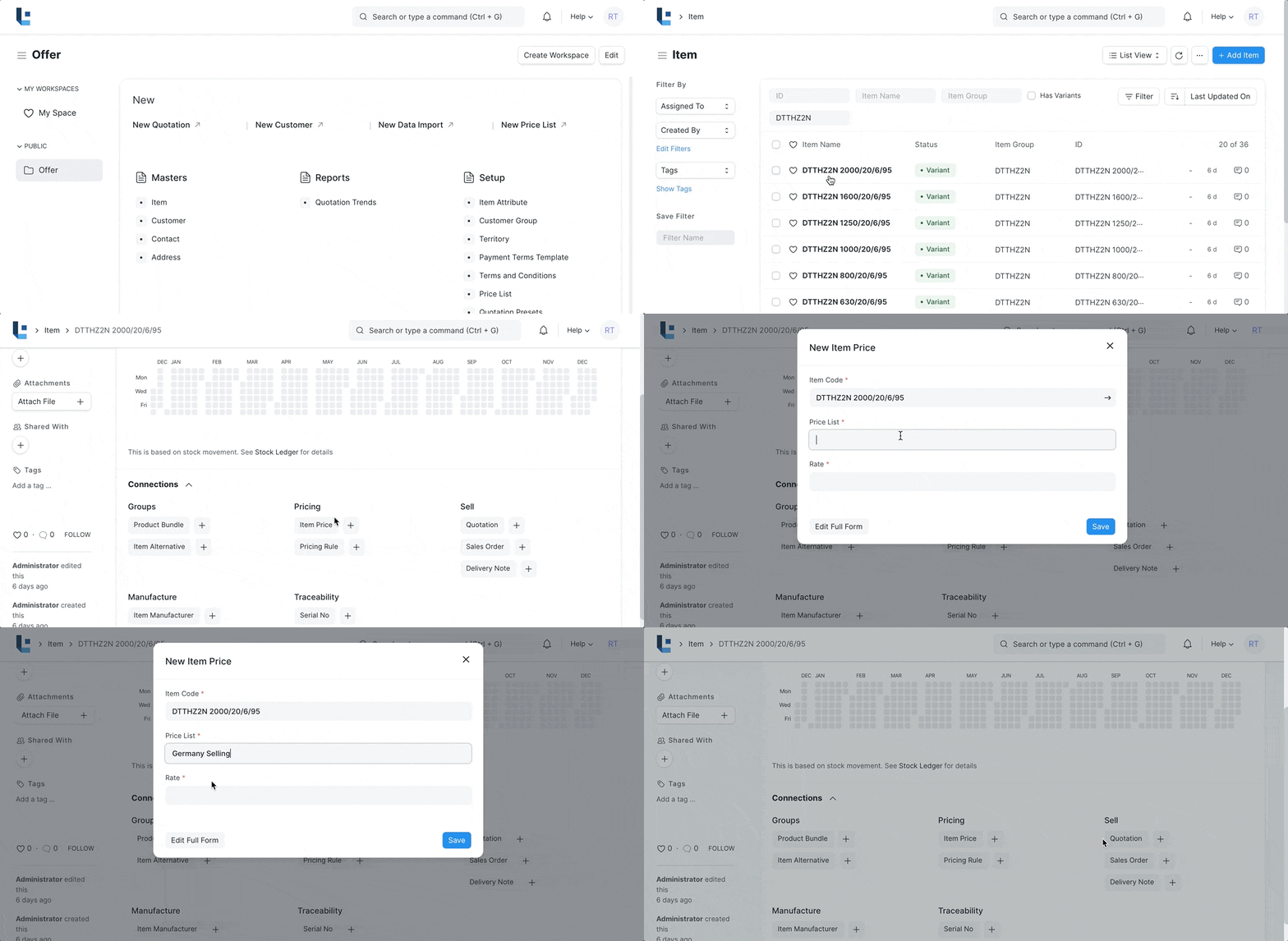
Home > Offer > Masters > Item > Dashboard > Click on "+" next to Item Price
1. How to create Item Price
- From the Item Dashboard click on "+" next to Item Price.
- In new Item Price form, the Item name, UoM and description will be fetched.
- Select the Price List(Catalog).
- Enter the actual rate in the Rate field.
- Save.
1.1 Selecting the Price List
You can create multiple Price Lists(Catalogs) for one Item in LENS Core to track Selling Price of an Item separately. The Price List is created per customer group.
On selection of Price List, its currency and applicability whether for selling/buying or both will be fetched as well. To have Item Price fetching in the offer, you should have 'Price List' selected in the transaction under Currency and Price List.
To check all Item Prices together, go to:
Home > Offer > Reports > Catalog Price
Visit the Price Lists page to know more.
2. Features
2.1 Applying Item Price to a specific Customer
If you select a Selling Item Price, a customer field will appear where you can assign this Item Price to a specific customer.
2.2 Validity
There are two fields here—'Valid From' and 'Valid Upto'. Valid from is set to the date you created the Item Price, you can also set the Valid Up to date on which the Item Price will expire.
2.3 Note
You can add any note about the Item Price in this field.
No comments yet. Login to start a new discussion Start a new discussion