Item
By Arunkumar Ganesan on December 21, 2022
IntermediateAn Item is a Transformer, Accessory or a Service offered by SGBCZ.
LENS Core lets you create Items and organise a catalog of products, accessories and services for Auto Offer. Completing the Item Master is very essential for the successful implementation of Auto Offer.
To access the Item list, go to:
Home > Offer > Masters > Item
1. Prerequisites
Before creating and using an Item, it is advised that you create the following first:
2. How to create an Item
- Go to the Item list, click on new.
- Enter an Item Code, the name will be auto-filled the same as Item Code on clicking inside the Item Name field.
- Select an Item Group.
- Enter the standard selling rate.
- Save.
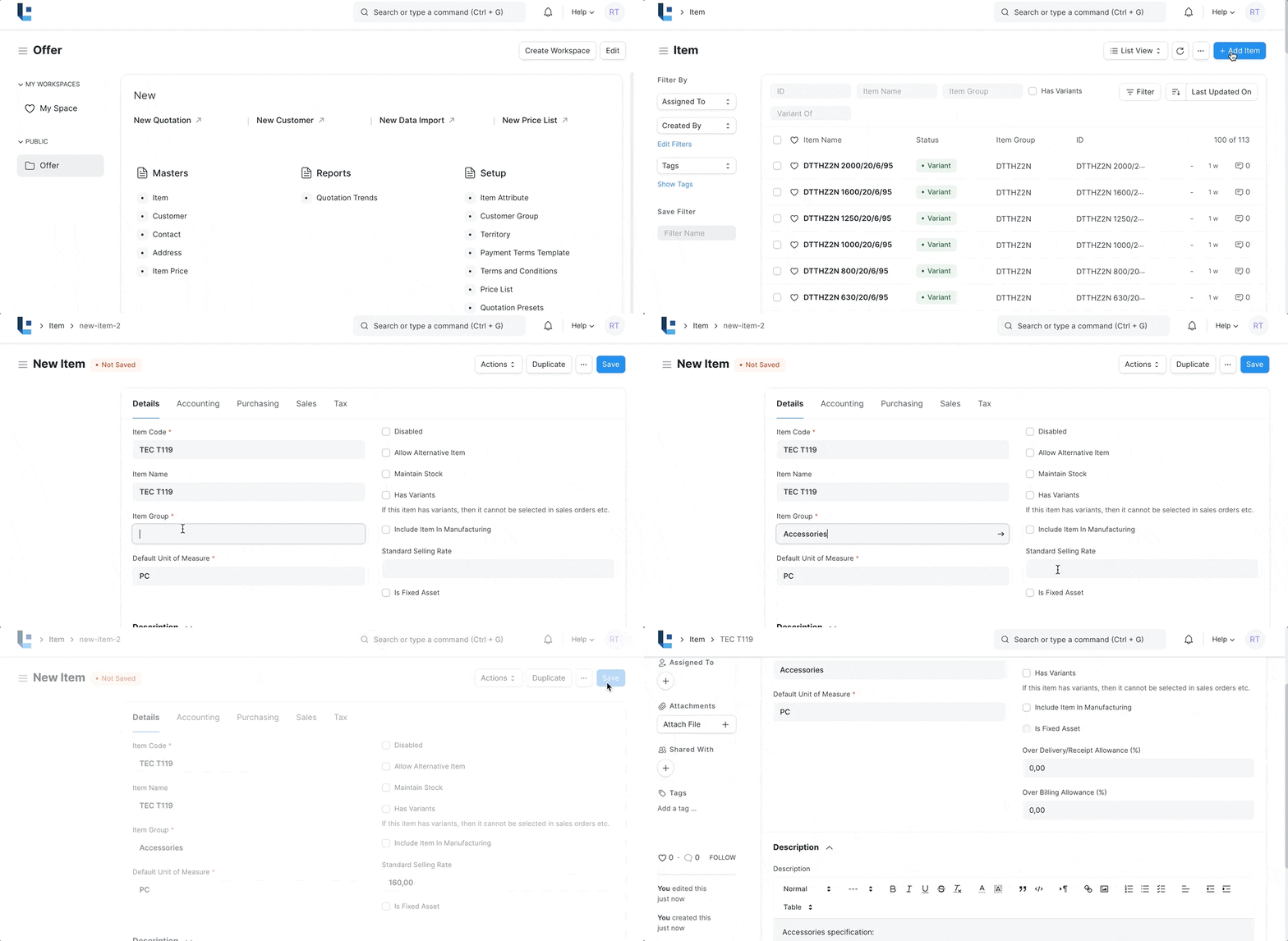
2.1 Item Properties
- Item Name: Item name is the actual name of your product or service.
- Item Code: Item Code is a short-form to denote your Item.
- Item Group: Item Group is used to categorize an Item under various criteria like Transformers(DTTHZ2N), Accessories, Services or all Item groups.
- Default Unit of Measure: This is the default measuring unit that you will use for your product. It could be Nos, PC, Meters, etc.
2.2 Options when creating an item
- Disabled: If you disable an Item, it cannot be selected in any transaction.
- Standard Selling Rate: When creating an Item, entering a value for this field will automatically create an Item Price at the backend. Entering a value after the Item has been saved will not work. In this case, the Item Price is created from any transactions with the Item. The rate at which you'll sell the item. This will be fetched in Offer
- Uploading an Image: To upload an image for your icon that will appear in all transactions, save the partially filled form. Only after your file is saved the 'Change' button will appear on the Image icon. Click on Change, then click on Upload, and upload the image.
3. Features
3.1 Description
- Description: Description of the item. The text from the Item Code will be fetched by default. By default the description will be populated with texts based on the item group and Item variants. For eg Items with Item Group Accessories will have default description as "Accessories specification:" and Variants of Item Group DTTHZ2N will have default description in bold formed with Item Attributes like 2000[kVA], HV 20[kV], LV 400[V], uK 6[%], P(0) 2340[W], P(k) 16000[W]
3.2 Variants
An Item Variant is a different version of an Item. To learn more about managing variants see Template Item and Item Variants.
3.3 Default Price List:
Certain Items are sold only to specific customer group, Territory or Customer. In such cases you can specify the default Price List to the Item so that while updating the price of the item, price is updated default Price List instead of Standard Selling.
No comments yet. Login to start a new discussion Start a new discussion